> ## Documentation Index
> Fetch the complete documentation index at: https://docs.db2i-mcp.com/llms.txt
> Use this file to discover all available pages before exploring further.
# Example web app
> A browser chat app for mcp-server-db2i: sign in with an IBM i user profile, use a company or personal model API key or a local model, and browse result tables, exports, business SQL tools and business context.
The repository includes an example web app in [`examples/web-app`](https://github.com/Strom-Capital/mcp-server-db2i/tree/main/examples/web-app). It shows how to build your own web app on top of mcp-server-db2i, so people can ask questions about IBM i data in the browser without a Claude, ChatGPT or other AI subscription per user, and without installing an MCP client.
* Users sign in with their own IBM i user profile, through the server's [OAuth sign-in page](http-transport.md#remote-clients-oauth). Every query runs with that user's authority.
* The model is your choice: a pay-as-you-go API key from Anthropic, OpenAI or Google Gemini, or a local model through an OpenAI-compatible endpoint such as Ollama or LM Studio. One company key on the app's server can serve everyone, or each user enters their own. With a local model, questions and results never leave your network.
It is an example to read, run and change, built with Next.js, [AI SDK](https://ai-sdk.dev) 7, `@ai-sdk/mcp`, [AI Elements](https://ai-sdk.dev/elements) and shadcn/ui. It is not published to npm.
## What it does
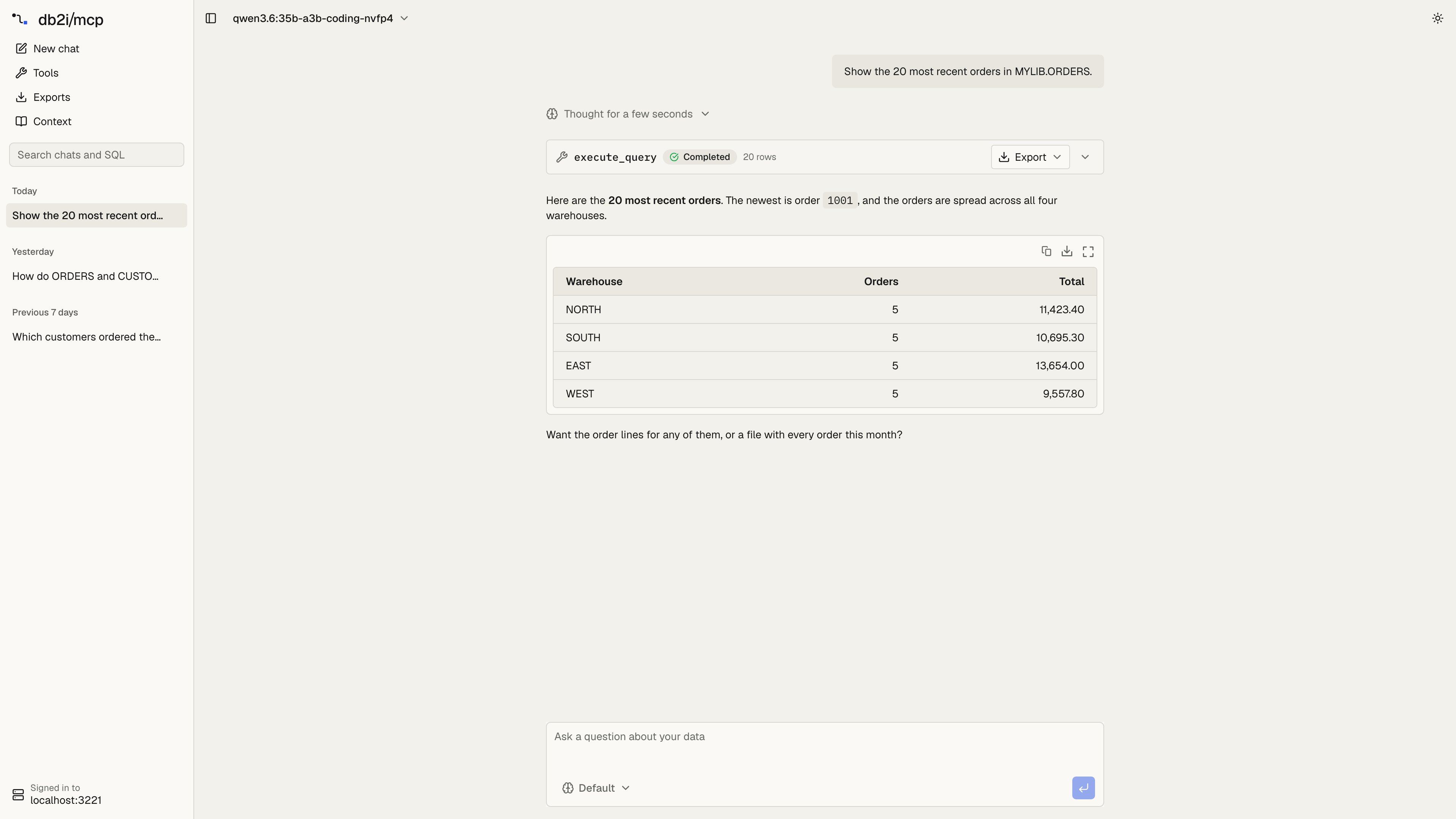
The sidebar lists your chats, newest first and grouped by day, like ChatGPT or Claude. Search finds a chat by its text or by the SQL it ran. Chats are saved in the browser, so each one has its own link (`/c/`) and is still there after a reload.
| Page | What it shows |
| - | - |
| Chat | The conversation. Each tool call is a card with its SQL or arguments and the result as a table, and the answer is rendered as markdown |
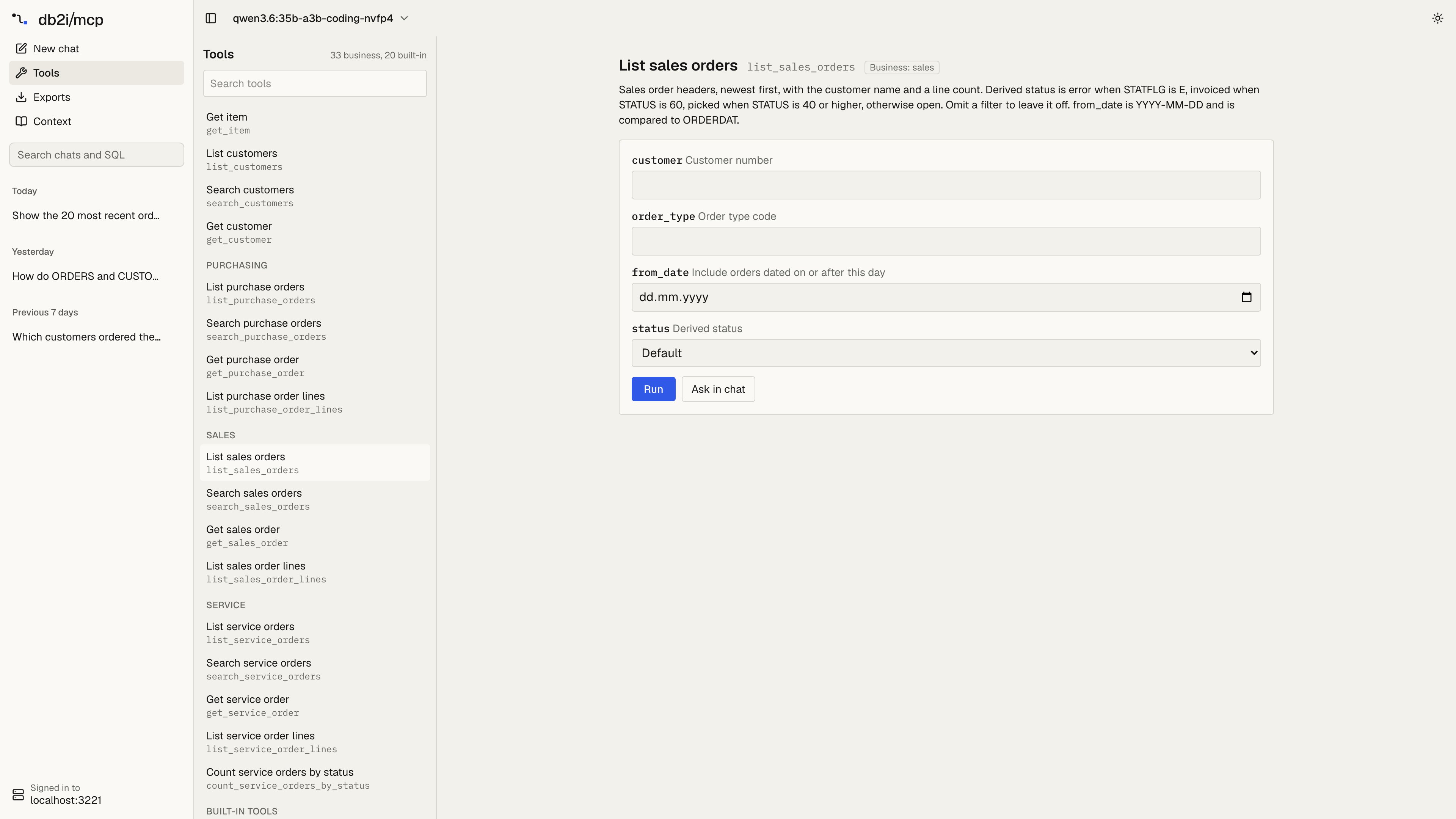
| Tools | Every tool the server lists, with business SQL tools grouped by toolset. Each tool has a form built from its input schema, so you can run it without the model |
| Exports | Files made by `export_query`, with row count, size, downloads allowed and time left before the link expires. Run an export again to get a fresh link |
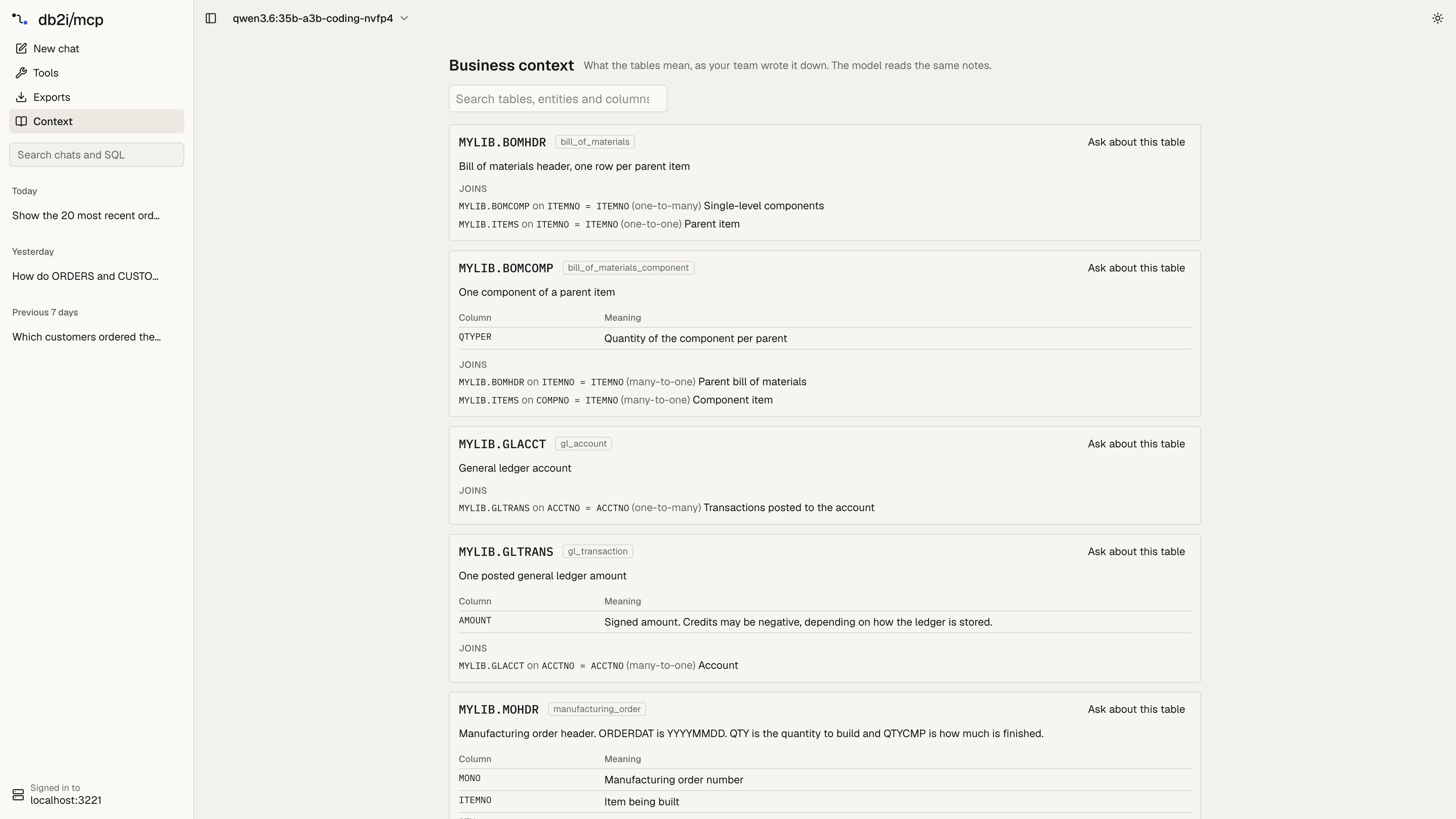
| Context | The business context loaded from YAML: what each table means, the filters most queries need, column notes and joins |
The app follows the system's light or dark mode. The theme button at the top right overrides it.
The effort menu in the chat box sets how long a reasoning model thinks before it answers: Default, Off, Low, Medium, High, Extra high or Max. The app passes it to AI SDK's `reasoning` option, which each provider maps to its own setting (Anthropic thinking and effort, OpenAI reasoning effort, Gemini thinking level). Models without reasoning ignore it.
Result tables can be sorted by any column, filtered, resized and scrolled through thousands of rows. **Copy for Excel** copies the rows as tab-separated text. Decimals keep every digit the server returned.
When a tool call returns rows with a chart, because the user asked for one or a business SQL tool sets `chart:`, the chat shows the server's [result view](tools.md#result-view) under it: a chart and a grid in a sandboxed frame that follows the app's theme. Other results keep only the table inside the tool card, so the lookups a model runs before its answer stay folded away. The app reads the view with `readMCPAppResource` (`/api/mcp-app/resource`, limited to `ui://db2i/` URIs), renders it with AI SDK's `experimental_MCPAppRenderer`, and runs it through `public/mcp-app-sandbox.html`. That proxy puts the view's HTML in an inner frame without `allow-same-origin`, under a Content-Security-Policy that blocks every network request. The view cannot call tools. With `MCP_UI_ENABLED=false` on the server, no view is shown.
Tool calls in the chat stay collapsed. A call that returned rows has an **Export** menu in its header, so you can export without opening it. For an `execute_query` result it offers **Excel** and **CSV** of every row from the server, through `export_query`. That gets past the row limit, and the file appears on the Exports page. When the server can't export, because `EXPORT_ENABLED` is off or the result came from a business SQL tool (the app knows its arguments but not the SQL behind it), the menu instead saves the rows the chat holds as CSV in the browser.
The Tools page lists what the signed-in user can call, so it follows `MCP_TOOLS_ENABLED`, `MCP_CUSTOM_TOOLS` and the profile the user signed in to. A form run is a normal tool call: it goes through the same validator, schema allowlist, rate limit and audit log as a call from the model. **Ask in chat** puts a request for the tool, with the arguments you filled in, into the chat box instead.
The Context page reads the `db2i://business-context` resource, so it shows exactly what the model gets from `get_business_context`. It stays empty until the server loads table annotations from [`MCP_CUSTOM_TOOLS`](custom-tools.md). **Ask about this table** puts a question about the table in the chat box.
## Run it
You need Node 22 or newer and mcp-server-db2i running over HTTP with OAuth:
```bash theme={null}
MCP_TRANSPORT=http
MCP_AUTH_MODE=required
MCP_OAUTH_ENABLED=true
MCP_PUBLIC_URL=http://localhost:3000
MCP_OAUTH_SECRET=
# Optional: downloadable Excel and CSV files
EXPORT_ENABLED=true
EXPORT_DIR=/tmp/db2i-exports
```
Then start the app:
```bash theme={null}
cd examples/web-app
cp .env.example .env.local # set SESSION_SECRET to openssl rand -base64 32
npm install
npm run dev
```
Open `http://localhost:3001`, choose **Sign in to IBM i**, then **Choose a model** to pick a provider, paste a key and choose a model.
### One key for the whole company
Instead of each user pasting a key, set one on the app's server. Everyone who signs in uses it, and the provider bills the one account per use:
```bash theme={null}
ANTHROPIC_API_KEY=sk-ant-... # or OPENAI_API_KEY, GOOGLE_GENERATIVE_AI_API_KEY
DEFAULT_PROVIDER=anthropic
DEFAULT_MODEL=claude-sonnet-5-5 # new users start here, without opening Settings
```
The key stays on the app's server: the browser only learns that the provider has one. It is used only for signed-in users, and it is kept out of error messages. A key a user enters in Settings is used instead of it. Set a spending limit on the provider account to cap the cost. The [app's README](https://github.com/Strom-Capital/mcp-server-db2i/tree/main/examples/web-app#readme) lists every setting.
Loopback redirect URIs are always accepted, so local development needs no change to `MCP_OAUTH_REDIRECT_URIS`. For a deployed app, add its callback to the list, and keep the clients you still use, because setting it replaces the defaults:
```bash theme={null}
MCP_OAUTH_REDIRECT_URIS=https://app.example.com/oauth/callback,https://claude.ai/api/mcp/auth_callback
```
## Switching systems
With [`DB2I_PROFILES`](http-transport.md#multiple-systems) set, the sign-in page asks which system to use. The session is bound to that system: tools have no `system` argument, and the Tools and Context pages show what that profile allows. To use another system, sign out and sign in again.
## Where data goes
* **The IBM i password** goes only to the server's sign-in page. The app never sees it.
* **OAuth tokens** stay on the app's server, in an encrypted, httpOnly session cookie. The browser cannot read them.
* **A user's model API key** stays in the browser's `localStorage`. Each chat request sends it to the app, which passes it to the provider and does not store or log it.
* **A company key** set on the app's server (`ANTHROPIC_API_KEY`, `OPENAI_API_KEY` or `GOOGLE_GENERATIVE_AI_API_KEY`) never reaches the browser.
* **Chats and the list of exports** stay in the browser, in IndexedDB. A saved chat keeps its messages and tool results, so result rows stay on that computer until the chat is deleted.
* **Query results** go to the model provider the user picked, as with any assistant. See [Where data goes](security.md#where-data-goes). With a local model on Ollama, results stay on your network.
## Related topics
- [Client setup](/client-setup.md)
- [HTTP transport](/http-transport.md)
- [Tools, resources, and prompts](/tools.md)
- [Development](/development.md)
- [Configuration](/configuration.md)
This documentation is built and hosted on [Mintlify](https://mintlify.com), a developer documentation platform.